Overview
Get from /start to your first Outrive trade.
Outrive lets you trade prediction markets on Hyperliquid without leaving Telegram.
Set Up the Bot
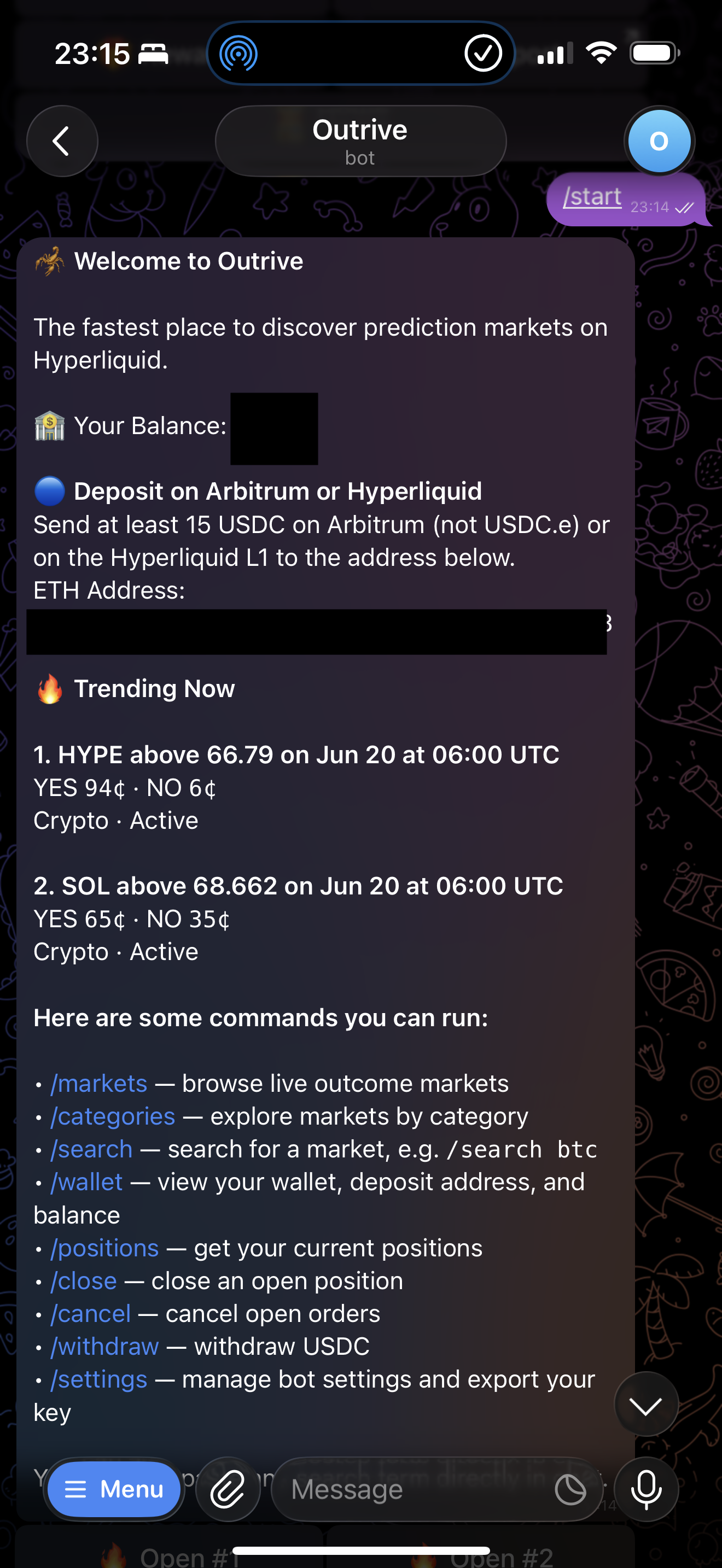
Open the Outrive Telegram bot and send /start.
If this is your first time, Outrive creates your wallet and returns the address you can fund. If you already have an account, /start refreshes your profile, balance, settings, and trending markets.
Deposit USDC
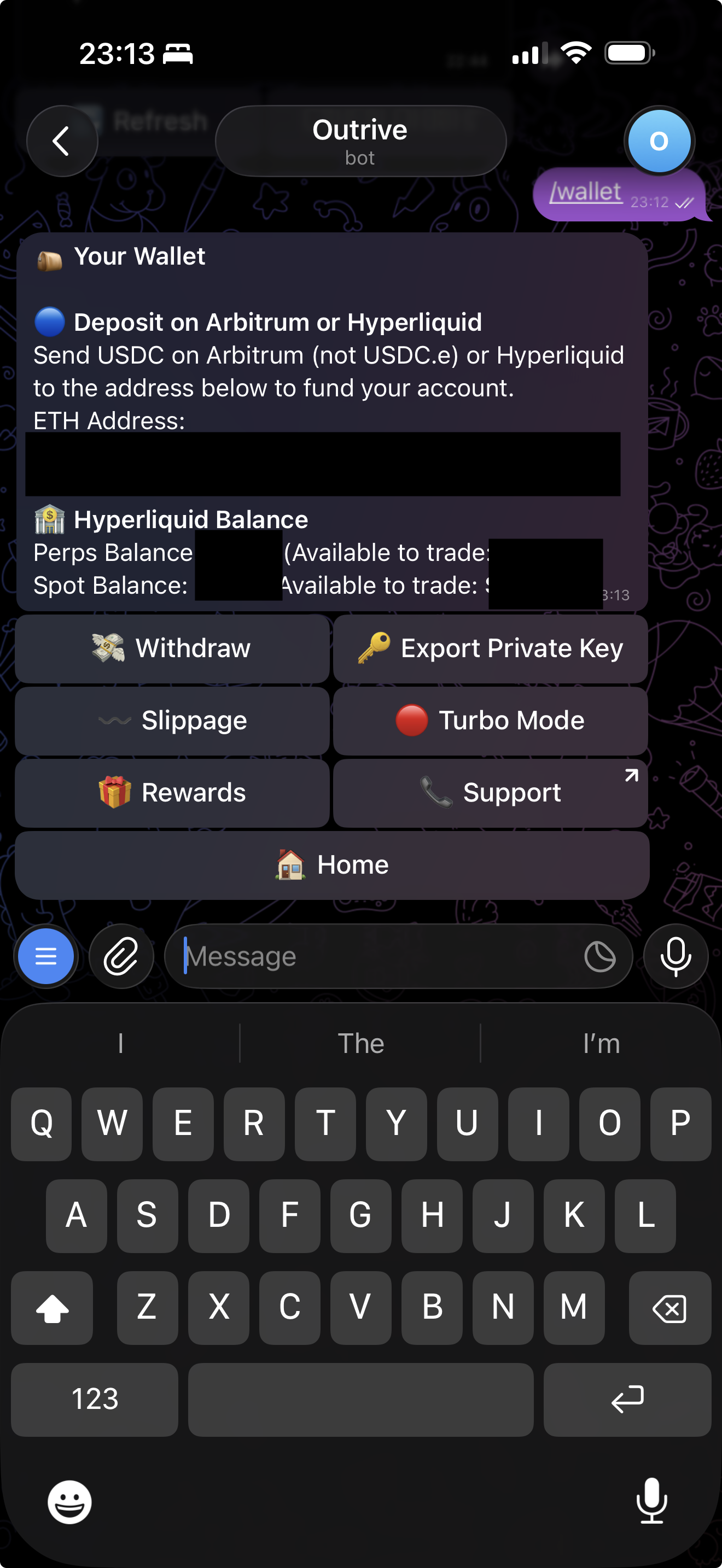
Next, deposit USDC to your wallet. Use /wallet to view your deposit address and current Hyperliquid balances.
You can deposit native USDC on Arbitrum or deposit directly through Hyperliquid. For Arbitrum deposits, send native USDC only. Do not send USDC.e.
The current minimum bridge amount for Arbitrum deposits is 15 USDC. After the bridge completes, the Hyperliquid balance may take about a minute to reflect.
Explore Markets
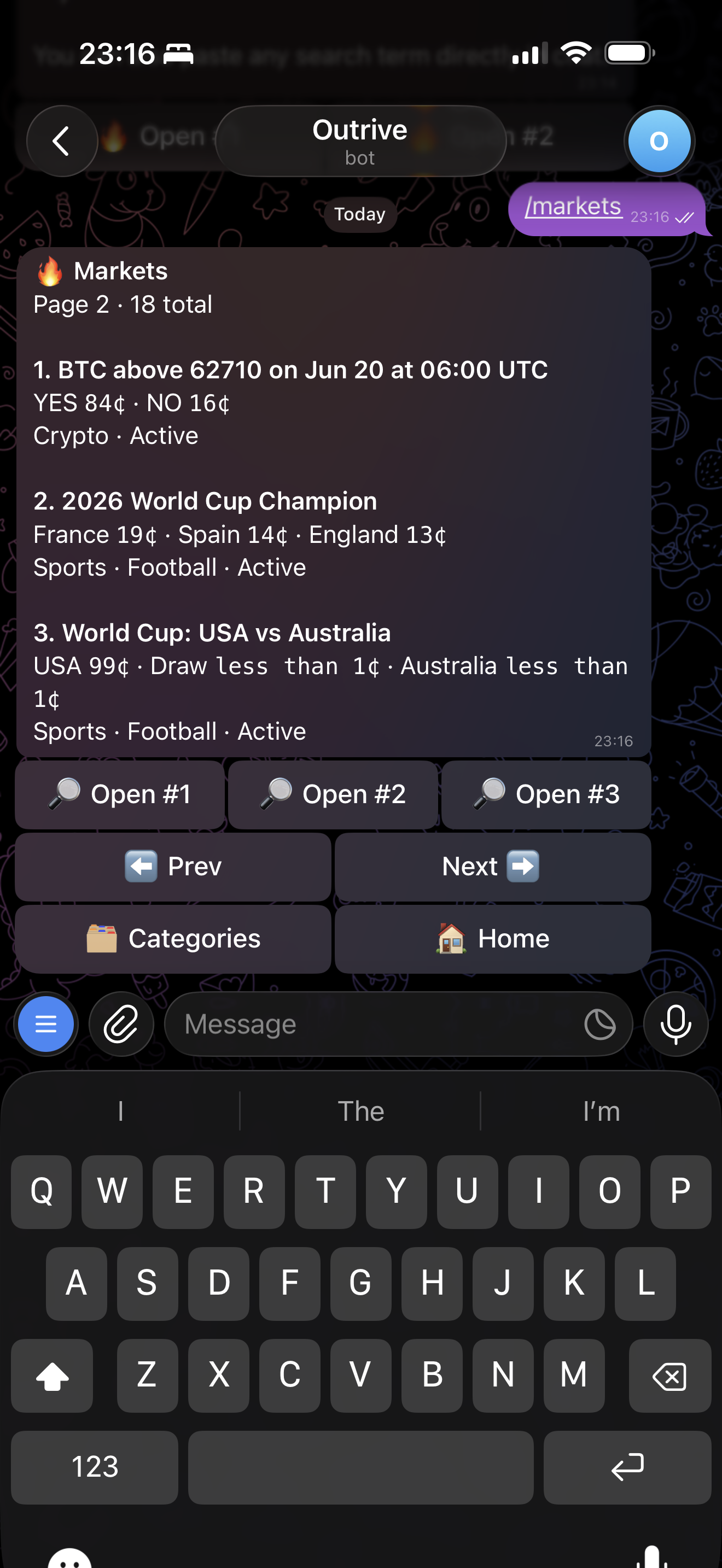
Use /markets to view active outcome markets.
Each market shows its title, category, YES price, NO price, and live status when available. Open a market to view the detail screen and choose a side.
Open Your First Position
Once your account is funded, open a market and tap YES or NO.
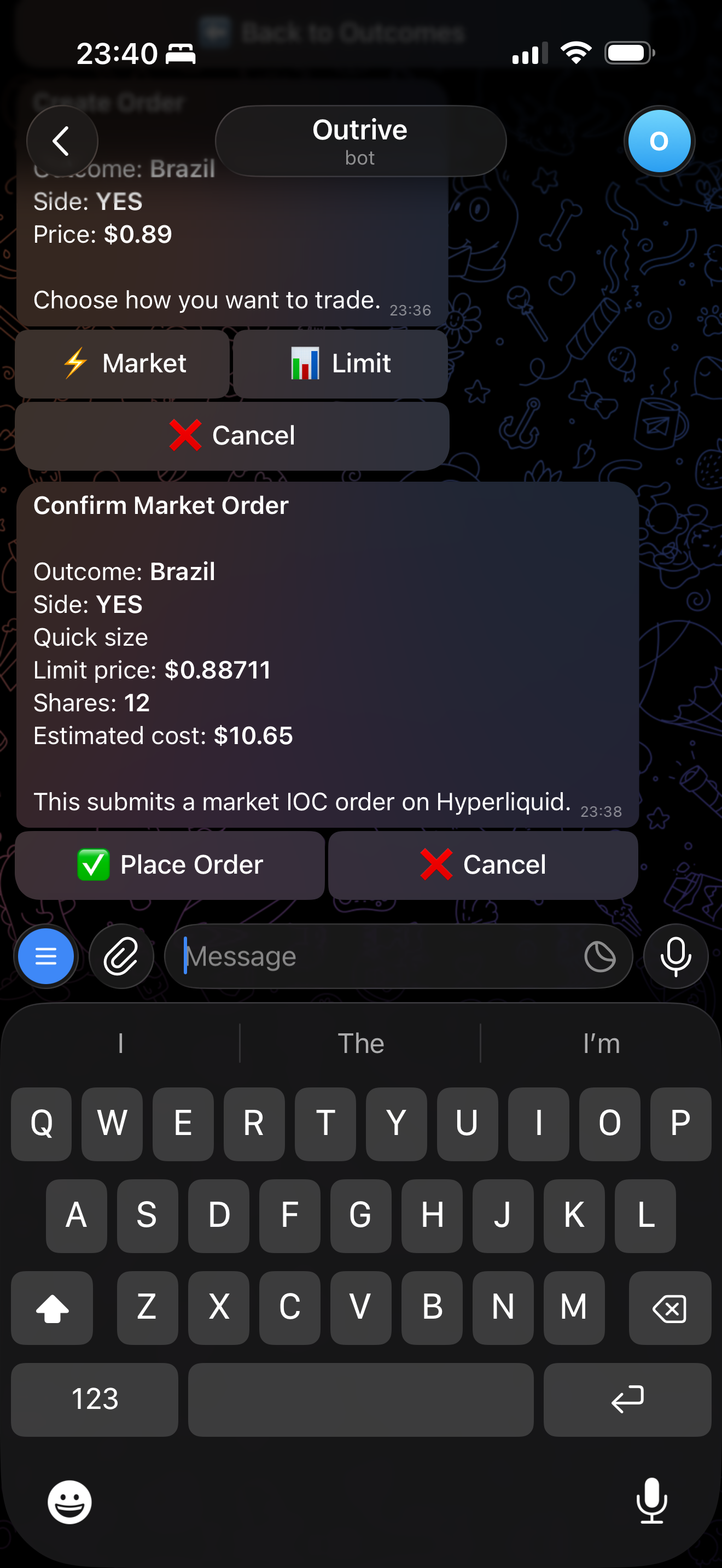
Outrive asks whether you want a Market or Limit order. Market orders are designed for speed, while limit orders let you choose the price from the orderbook flow.
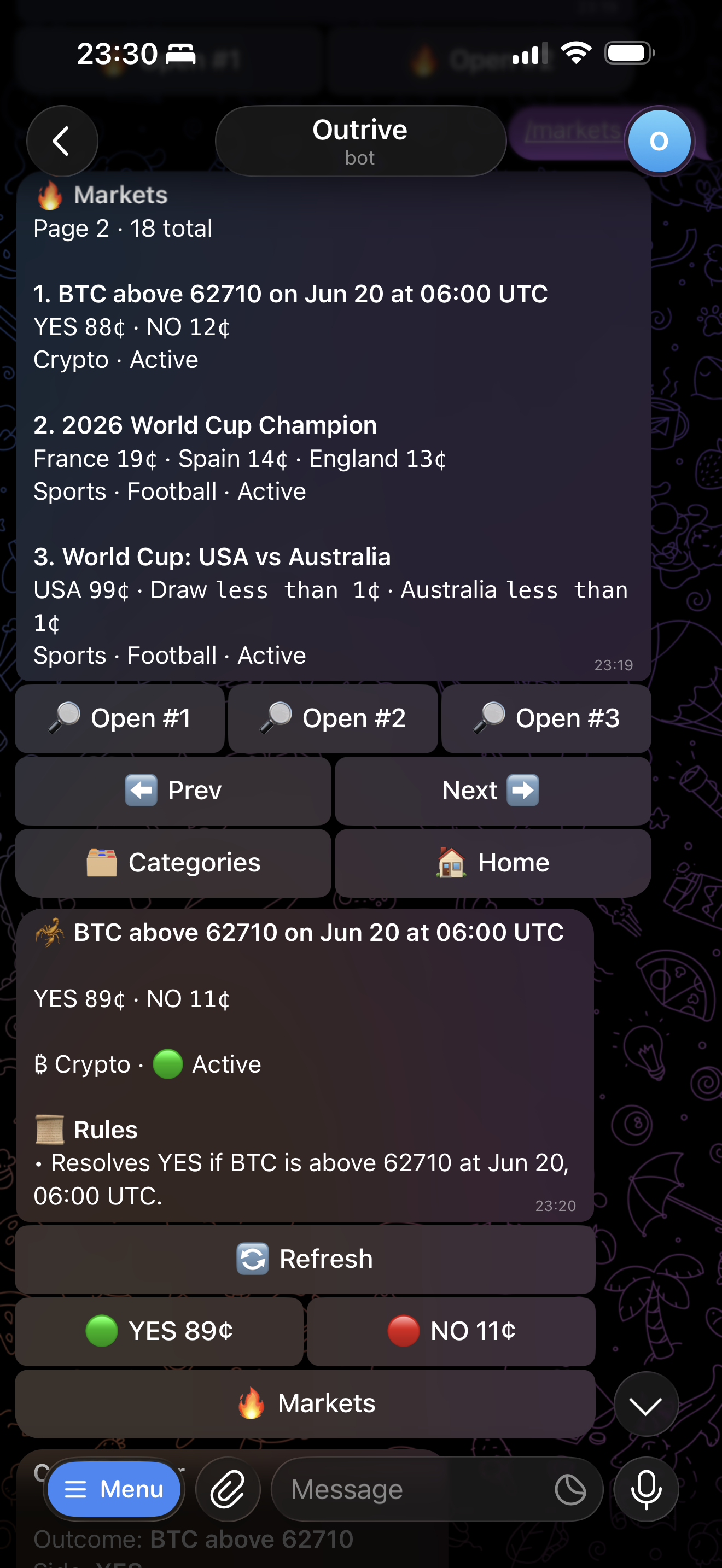
After choosing Market, select a share amount or enter a custom amount. Outcome orders have a minimum value of 1 USDC, so the bot calculates valid share sizes from the selected market.
When turbo mode is disabled, Outrive shows a confirmation screen before submitting the order. After submission, the bot returns the execution result.
View Your Positions
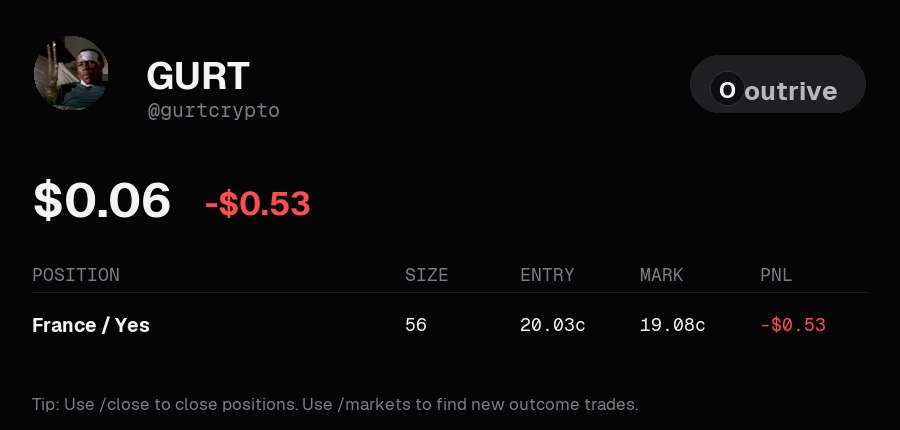
After your order fills, use /positions to view your open positions.
The position card shows account value, account PnL, position name, side, size, entry, mark, and PnL. You can also use /close to close a position.
Share Calls In Groups
After a backed order is submitted, you can share it as a call to a Telegram group.
Other users can tail the same side, fade the opposite side, view the chart, or open the market. Trade actions still open in DM.
You Are Done
You have funded your wallet, found a market, and placed your first Outrive trade.
Next, try the rest of the trading workflow:
/ordersshows open limit orders./callsshows active group calls or your own calls in DM./cancellets you cancel open limit orders./closelets you close open positions./settingsopens execution settings./walletrefreshes your wallet and balance view.- Turbo mode can skip confirmation screens for faster supported actions.
- Slippage controls the maximum price movement allowed for market and close orders.
Useful next reads: